Kids' Tablets in 2026: A Parent's Setup and Safety Guide
Set up a child's tablet safely in 2026: age filters, time limits and app approvals for Fire Kids, iPad and Samsung Kids, plus the monthly checks that matter.
Drafted with an AI writing assistant and checked against its sources by the editor before publishing. How we use AI.
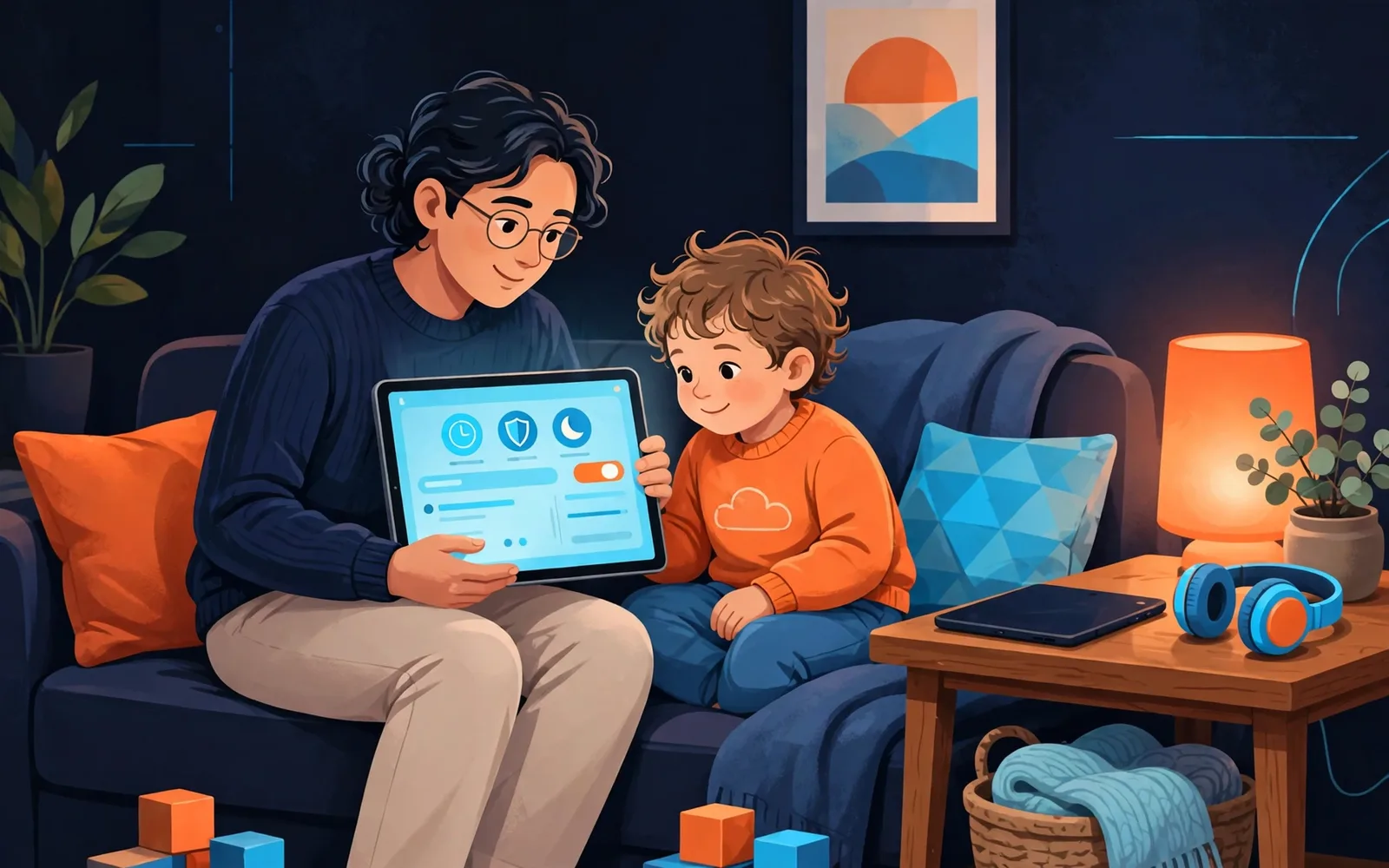
Set up a dedicated child profile with the real birthdate, turn on age filters and daily time limits, require approval for every new app, keep the tablet out of the bedroom overnight, and review activity and permissions together once a month.
A tablet is often the first screen a child owns. In the United States, 40% of two-year-olds already have their own tablet. In the UK, 59% of children aged 8 to 17 use a tablet to go online. Every major tablet now ships with real parental controls built in, but most of them are off, half-set, or set once and never checked again. This guide covers the setup that works in 2026 for the three tablets families buy most: Amazon Fire Kids, iPad, and Samsung Galaxy Tab with Samsung Kids.
Start before the first tap: a child profile, not your account
The single most important step costs nothing and takes five minutes. Give your child their own profile, with their real birthdate, and never let them use your adult account. Every age filter, time limit, and app approval is driven by that birthdate and that profile. Put in a fake older age and the filters quietly widen.
On Fire Kids tablets, the child profile is the whole point of the device. On iPad, create a Child Account inside Family Sharing from your own iPhone or iPad first. On Samsung, set up a supervised Google account through Google Family Link, or use Samsung Kids mode for younger children. Finish this step before your child touches the tablet. Retrofitting controls onto a device your child already treats as theirs is a much harder conversation.
The five settings that matter on every tablet
Every system names its controls differently, but the same five decisions exist everywhere. Work through them in order.
1. Age filter. This sets the ceiling for what the tablet will show. On Fire tablets, the Amazon Kids Parent Dashboard lets you adjust the age filter from a browser or the Parent Dashboard app, free with any Amazon account. On iPad, age ratings sit inside Screen Time. On Samsung, Samsung Kids only shows apps you have approved. Set the filter at or slightly below your child's real age; you can raise it later.
2. Daily time limits. Children aged eight and under now average about two and a half hours of screen media a day, and children aged 5 to 8 average about three and a half hours, well above the roughly one hour a day the American Academy of Pediatrics advises for ages 2 to 5. Set a daily limit that fits your family's routine. On Fire tablets, set it in the Parent Dashboard, with different limits for weekdays and weekends. On iPad, use Screen Time's Time Allowances by app category. On Samsung, use Samsung Kids or Family Link. For the age-by-age numbers, see our guide to screen time by age.
3. App approvals. Turn on approval for every new app and every purchase. On iPad, Ask to Buy is switched on by default for children under 13. On Fire tablets, children cannot install apps without the parental controls PIN. On Samsung, Family Link lets you approve or block apps from your own phone.
4. Web browsing. A tablet with an open browser is a tablet with the whole internet on it. For children under about eight, turn the browser off entirely. Fire tablets offer a kids' browser that only shows websites pre-screened by the Amazon Kids team. On iPad, Limit Adult Websites is on by default for children under 18, and you can restrict Safari to approved websites only. On Samsung, Family Link offers three Chrome settings: allow all sites, try to block explicit sites, or only allow approved sites.
5. Location and privacy. During setup, say no to location, microphone, and camera access for apps that do not need them, then review permissions monthly. Our routine for reviewing your child's app permissions takes ten minutes and catches the location access a game quietly kept for months.
Fire Kids vs iPad vs Samsung Kids: the honest comparison
| Feature | Amazon Fire Kids | iPad with Screen Time | Samsung Galaxy Tab / Samsung Kids |
|---|---|---|---|
| Best age range | 3 to 12 | 6 and up | 3 to 12 in Samsung Kids; older with Family Link |
| Child profile | Built in, up to 4 profiles | Child Account in Family Sharing | Samsung Kids mode or supervised Google account |
| Age filter | Adjustable by age in Parent Dashboard | Content ratings in Screen Time | Approved-apps-only in Samsung Kids |
| Time limits | Daily limits, goals, bedtime | Time Allowances by category, downtime | Daily limits and bedtime in Samsung Kids |
| App approval | PIN required for installs | Ask to Buy, on by default under 13 | Family Link approval from parent's phone |
| Web browsing | Kids browser, hand-selected or filtered sites | Safari restrictions, approved sites only | Family Link Chrome controls |
| Remote control | Parent Dashboard web and app | Manage from parent's iPhone or iPad | Family Link app on parent's phone |
| Durability | Kid-proof case included | Needs a separate rugged case | Needs a separate rugged case |
| Rough cost | Lowest | Highest | Mid-range |
The best tablet is the one whose controls you will actually open. Fire Kids wins for younger children because the controls are the whole product and the price is the lowest. iPad wins for older children who need it for school, because Screen Time is the most flexible system. Samsung sits in the middle: Samsung Kids is excellent for younger children, and Family Link takes over cleanly as they get older.
The 20-minute setup checklist
Do this once, in order, with the tablet in your hands. Create the child profile with the real birthdate. Set a strong parent PIN or Screen Time passcode your child does not know, and never type it where they can see it. Turn on the age filter at or below your child's age. Set daily time limits, different for school days and weekends. Switch on app approval for every download and purchase. Set the browser to off for under-8s, or to approved sites only. Turn off location, microphone, and camera access for apps that do not need them. Turn on a bedtime schedule, charge the tablet outside the bedroom, and show your child the rules on screen.
The monthly check that keeps it working
Controls drift. Children grow, new apps appear, and settings get changed on holiday and never changed back. Once a month, spend ten minutes on this list: open the activity report and look at what your child actually used most; check the age filter still matches your child's age; review app permissions; look at the web history for anything new; and ask your child what they enjoy most on the tablet.
When a tablet beats a phone
For most children under 12, the tablet is the better first device. It has no phone number, no texting with strangers, and no social media apps by default. It stays at home, so you control where and when it is used, and it is big enough for reading, drawing, and schoolwork. A phone becomes the right choice when your child genuinely needs to contact you away from home, usually around age 11 or 12.
Frequently asked questions
What age should a child get their first tablet? There is no single right age, but the data shows tablets arrive early: 40% of two-year-olds in the US already have their own. The AAP advises no screens except video chat under 18 months and about one hour a day for ages 2 to 5. Most families find ages 3 to 5 work well, as long as it is a child profile with limits.
Is Amazon Fire Kids safe out of the box? Mostly, but not completely. The child profile and age filter are on by default, which is a strong start. What is not done for you is the daily time limit, the web browser mode, and the content choices, so finish the setup checklist above before your child uses it. Amazon's age filters also do not apply inside outside apps.
Can my child bypass Screen Time or the Fire Kids PIN? Any system can be bypassed by a determined older child, especially if they have watched you type the PIN. Keep the code secret, use a different code from your phone unlock, and check the activity report monthly.
Should I use Family Link, Samsung Kids, or both? Use Samsung Kids for children under about eight, because it locks the tablet into a simple, approved-apps-only space with its own bedtime schedule. Add Google Family Link as your child gets older, because it controls app installs, Chrome filtering, and location from your phone.
How much screen time should I allow on a tablet? Start with your family's routine, not a stranger's number. The AAP's guide is about one hour a day of high-quality content for ages 2 to 5, with family-set limits after that. Canada's guideline allows up to two hours of recreational screen time a day for ages 5 to 17. Pick a number you can keep every day and protect sleep and mealtimes first.